Page numbers are an essential part of any document, whether it’s a research paper, a business proposal, or a novel. They help readers keep track of their place and make it easy to find specific information.
In Microsoft Word, there are a few different ways to add page numbers. Here are the five most common methods:
1. How to add page number in Word header
- Go to the Insert Tab
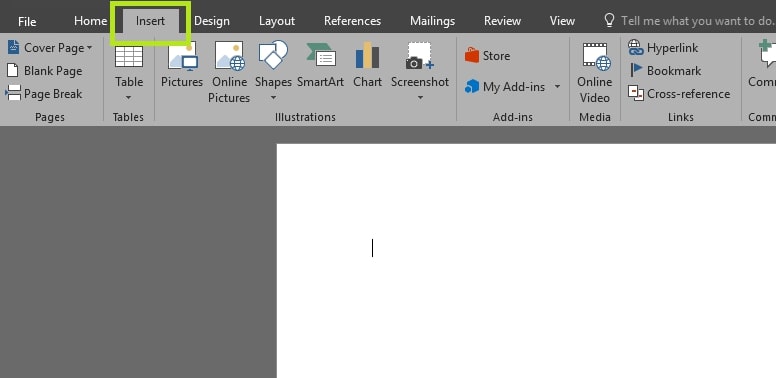
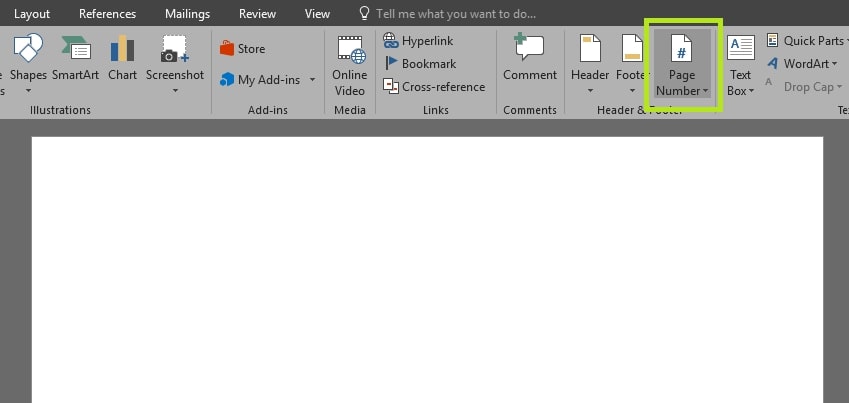
- 2. In the Header & Footer group, click the Page Number button.
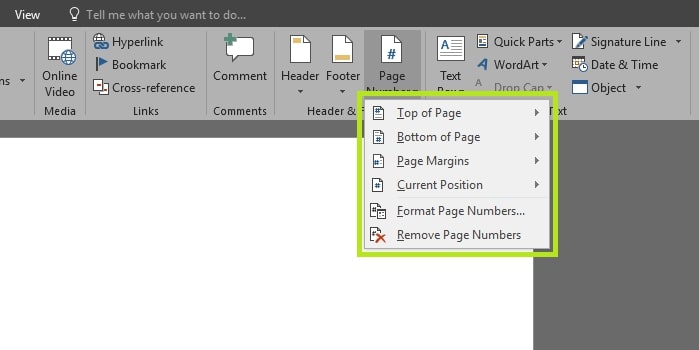
You will see a drop-down menu with the following options:
- Current Position: This will add the page number at the cursor’s current location.
- Top of Page: This will add the page number in the header of the document.
- Bottom of Page: This will add the page number in the footer of the document.
- Page Margins: This will add the page number in the margins of the document.
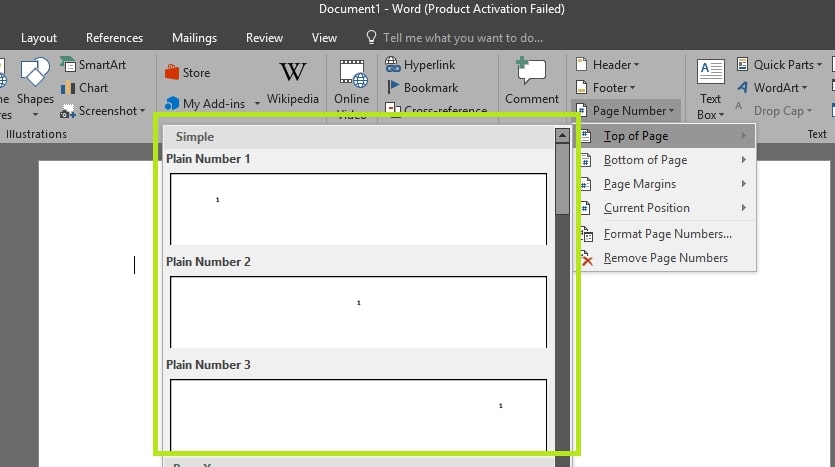
- 3. Choose the location Top of Page numbers to appear in the header.
- 4. Choose the page number format that you want. You can choose from a variety of formats, including Arabic numerals, Roman numerals, and letters and select.
The page numbers will be inserted in the document according to your preferences.
2. How to add page number in Word body
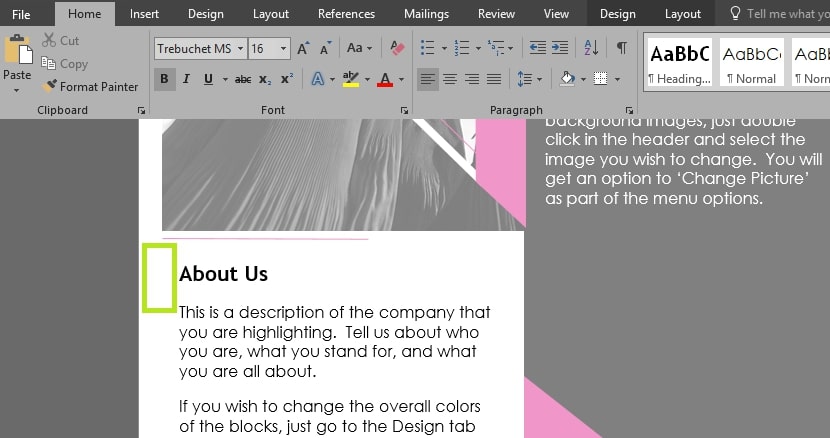
- Place Your Cursor
Click at the location in the document where you want to insert the page numbers.
- Go to the Insert tab.
- In the Header & Footer group, click the Page Number button.
- Click Current Position

- Choose the page number format that you want.
You can choose from a variety of formats, including Arabic numerals, Roman numerals, and letters and select.
Word will automatically insert the page number at the cursor position in the content.
3. How to add page number in Word footer
To add page numbers in the footer of a Word document, follow the steps above, but instead of clicking Current Position, click Bottom of Page.

4. How do I start page numbers on a specific page in Word?
- Go to the Insert tab
- In the Header & Footer group, click the Page Number button.
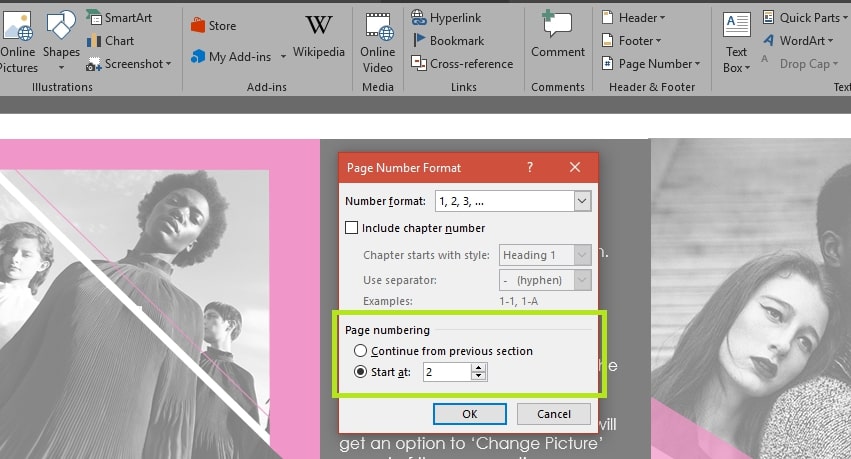
- Select Format Page Numbers from the drop-down menu.

- Select the Start at option and enter the number of the page where you want the page numbers to start and click ok.
5. How can I start numbering on page 3?
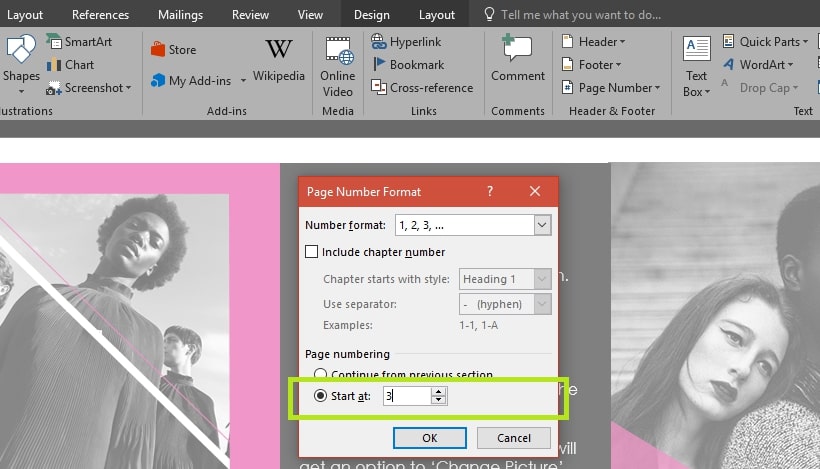
To start numbering on page 3, follow the steps above and enter 3 in the Start at field.
I hope this blog post was helpful. Please let me know if you have any other questions.